Granting Truster Works Oy a mandate for tax affairs in Suomi.fi
Contents
Use this guide if you want to grant Truster Works Oy (business ID 3131729-7) the right to handle your tax affairs, and the mandate request we sent you does not appear under your received mandate requests. In that case you can create the mandate yourself. You are the assignor (your own company / business ID, or yourself as a private trader), and the mandate you grant is Managing of tax affairs.
When to use this: Normally you would just approve the request Truster sent you. If it never turns up in "Received mandate requests", follow the steps below to grant the same mandate manually. The end result is identical.
1Sign in and choose your role
Start by signing in to Suomi.fi and choosing whose behalf you act on.
- Sign in to Suomi.fi with your online banking codes or another identification method.
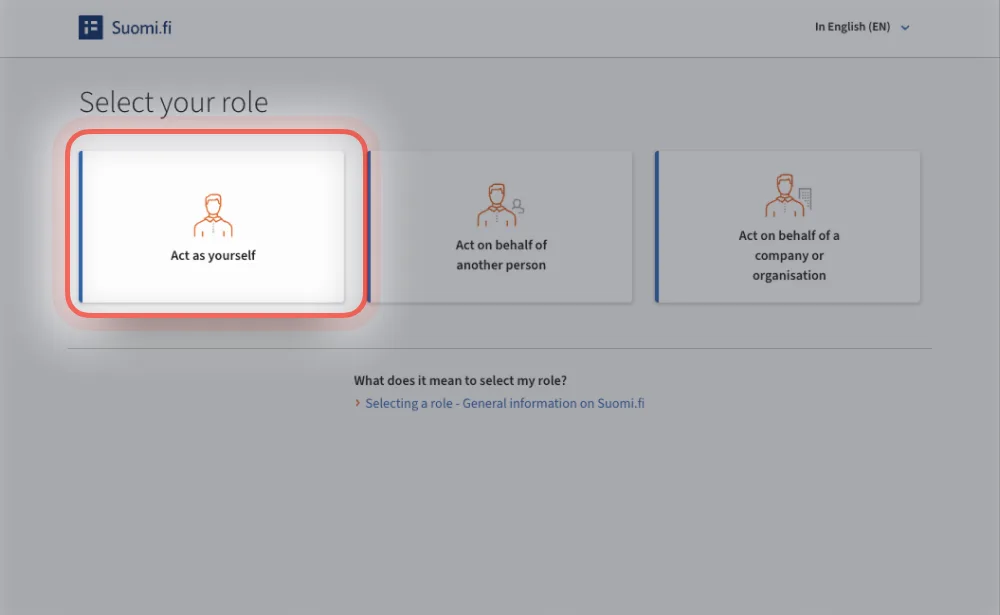
- On the "Select your role" page, choose how you act:
- If you are a sole proprietor / private individual, choose "Act as yourself".
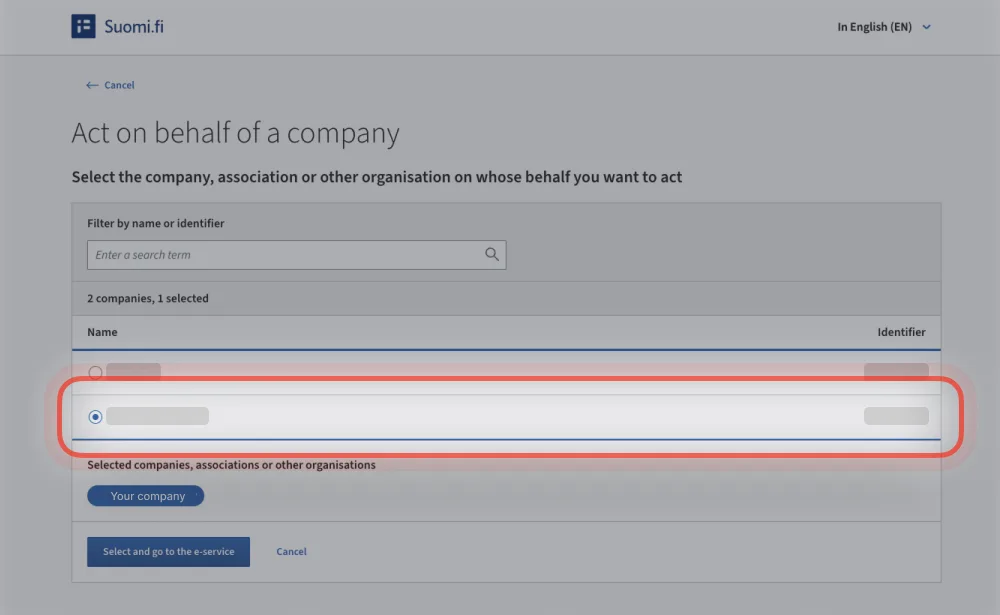
- If your business appears as its own organisation, choose "Act on behalf of a company or organisation", then select your company and press "Select and go to the e-service".
Check the top bar: The banner ("... is acting on behalf of ...") shows whose name you are signed in under. Make sure it is correct before continuing, and use "Change your role" if you need to switch.
2Open e-Authorizations and start granting
Then head into e-Authorizations to start granting the mandate.
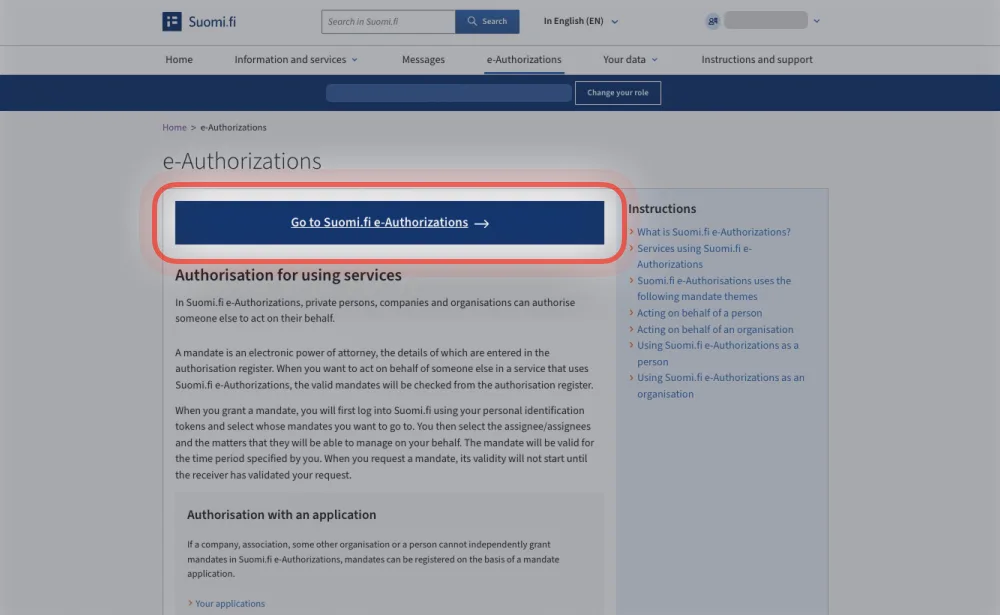
- On the "e-Authorizations" page, press "Go to Suomi.fi e-Authorizations".
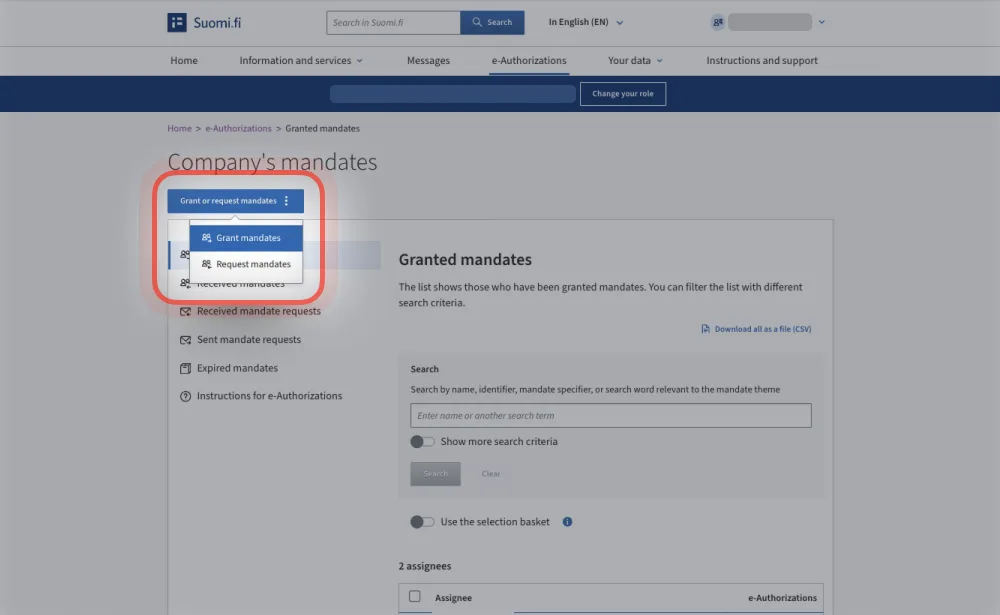
- Press "Grant or request mandates" and choose "Grant mandates".
3Mandate type
First, choose what type of mandate you are granting.
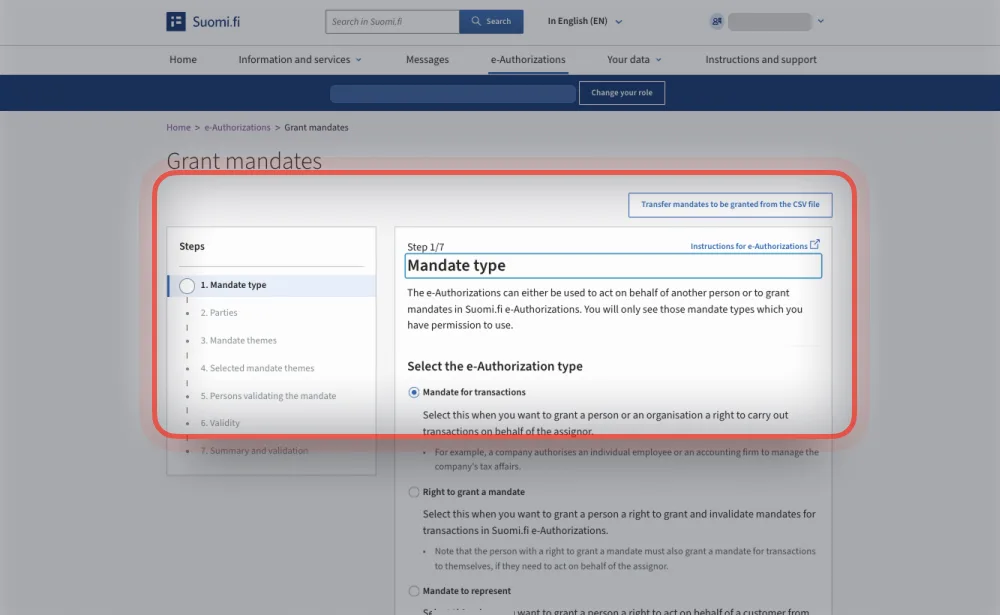
- Under "Select the e-Authorization type", choose "Mandate for transactions" – the right to handle affairs on your behalf.
- Press "Next".
4Parties – add Truster
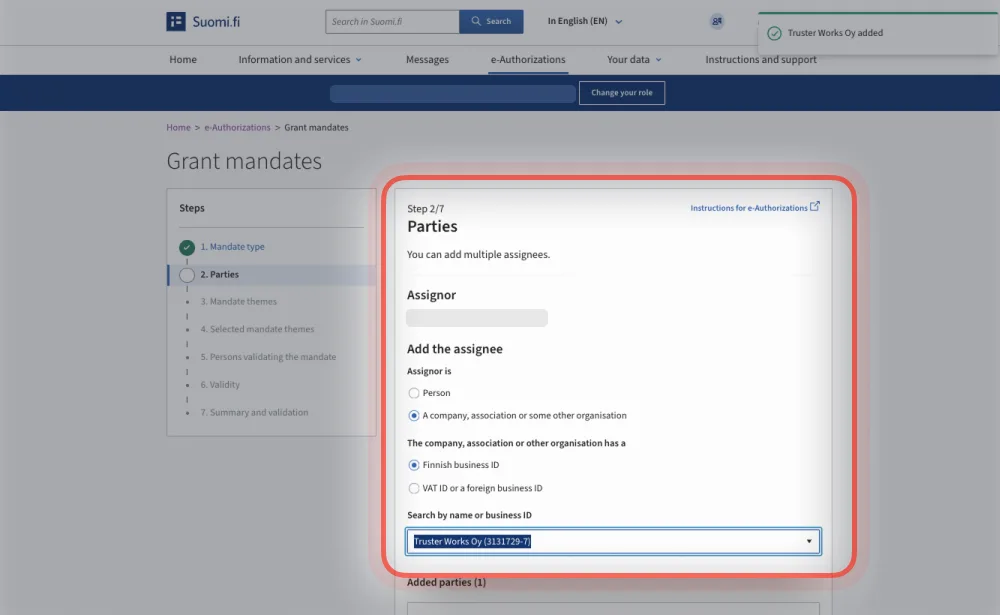
Next, add Truster Works Oy as the assignee.
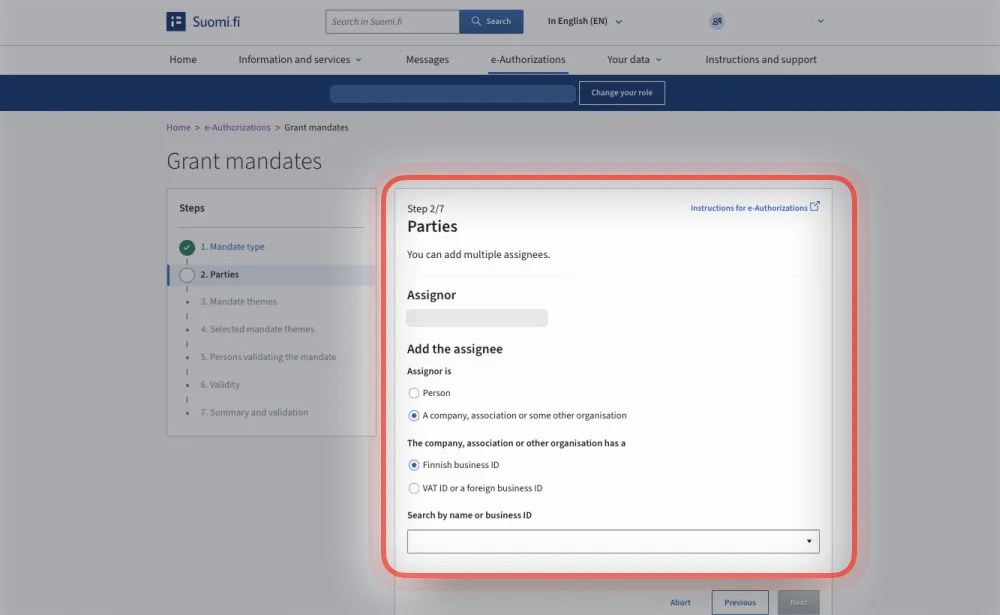
- The Assignor is already filled in with your own name or company (your own business ID).
- Under "Add the assignee", set the assignee is "A company, association or some other organisation" with a "Finnish business ID".
- In "Search by name or business ID", enter 3131729-7 and select Truster Works Oy from the results.
- Truster Works Oy appears under "Added parties". Press "Next".
5Mandate themes – choose Managing of tax affairs
Then pick the mandate theme you are granting to Truster.
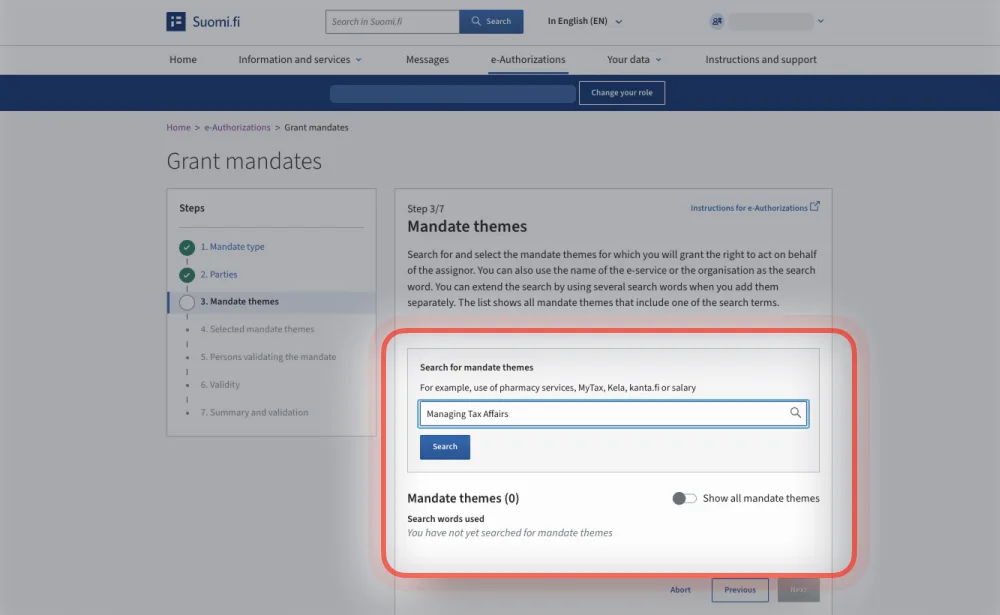
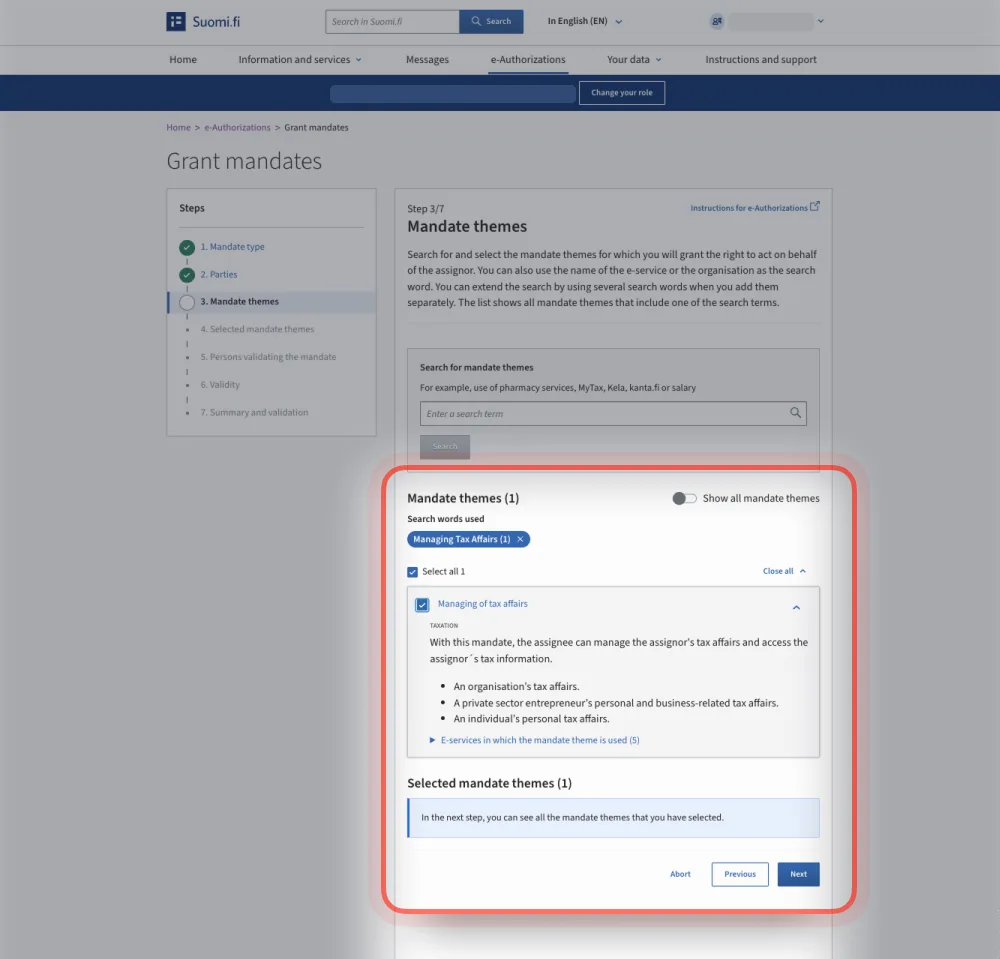
- In "Search for mandate themes", type Managing of tax affairs and press "Search".
- Tick the checkbox for "Managing of tax affairs" (category Taxation). This lets the assignee manage your personal and business tax affairs and access your tax information.
- Press "Next".
6Selected mandate themes
Review your selection before moving on.
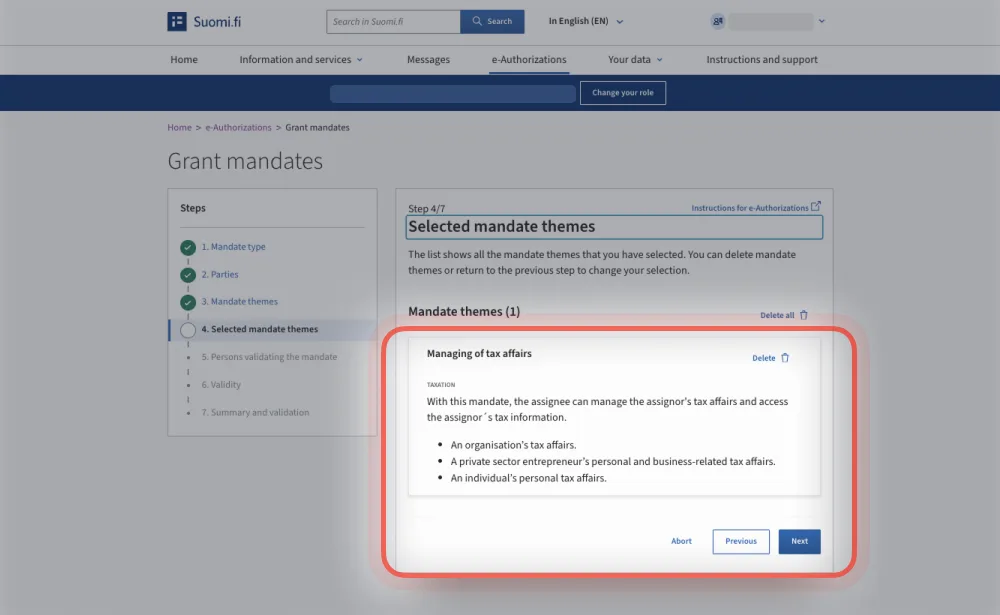
- Check that Managing of tax affairs is listed. Remove it with "Delete" only if it is wrong.
- Press "Next".
7Persons validating the mandate
The service tells you whether you can validate the mandate alone.
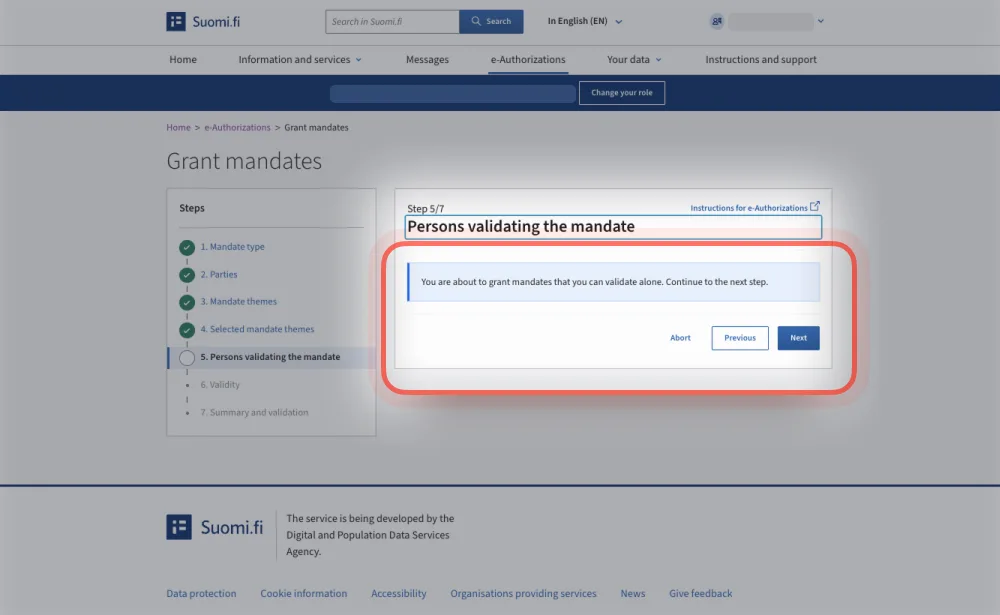
- If you can validate the mandate alone, the service shows: "You are about to grant mandates that you can validate alone." Press "Next".
- If your company requires more than one person to validate, add the other validators here.
8Validity
Set how long the mandate stays in force.
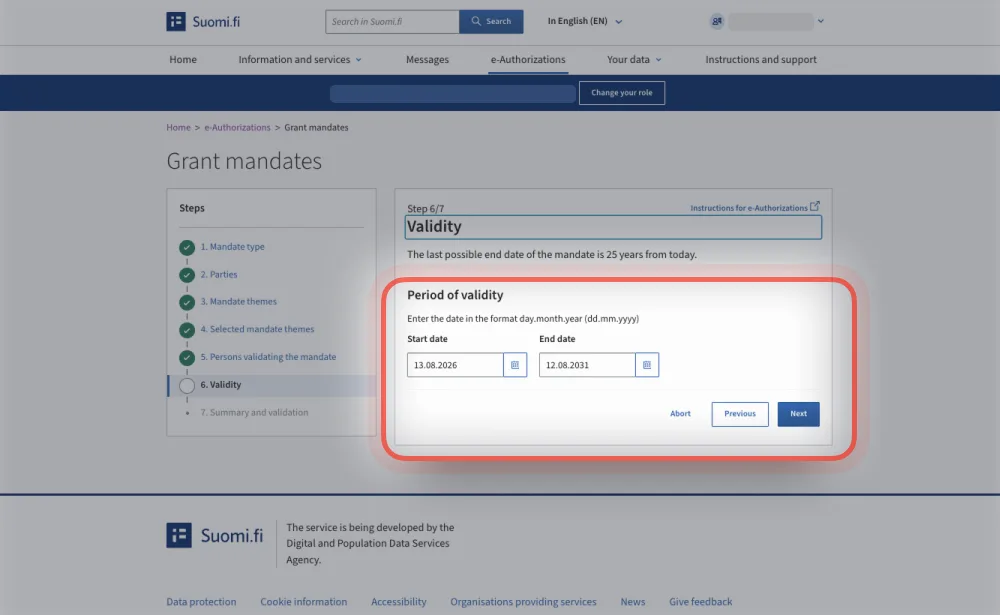
- Enter the Start date and End date in the format dd.mm.yyyy.
- The latest possible end date is 25 years from today; a 5-year period is a common choice.
- Press "Next".
9Summary and validation
Finally, review the details and confirm the mandate.
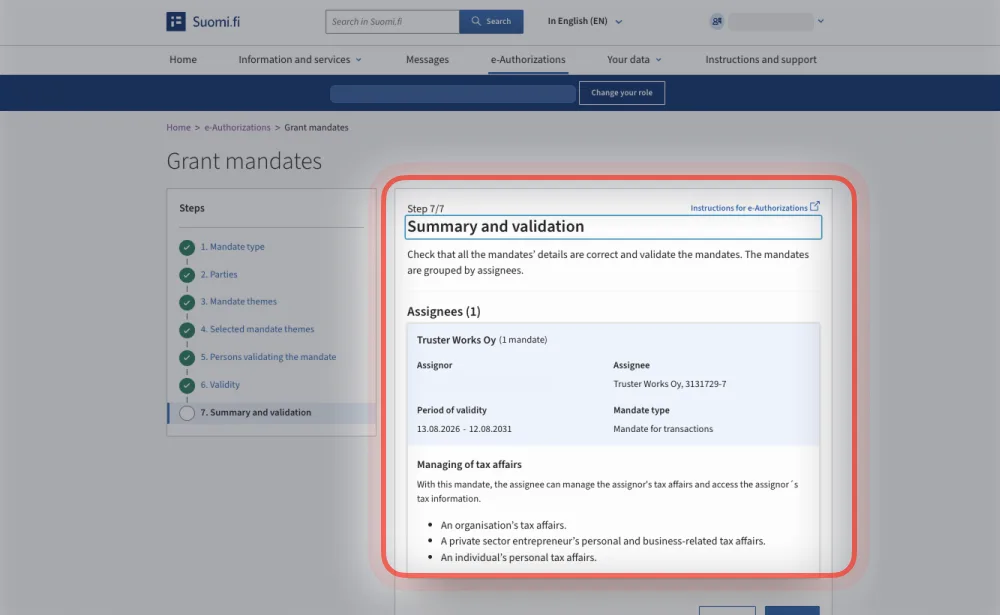
- Check the summary: assignor, assignee (Truster Works Oy, 3131729-7), period of validity, mandate type and Managing of tax affairs.
- Press "Validate" to finish. The mandate takes effect from the start date and Truster does not need to accept it separately.
- To fix something, use "Previous", or "Abort" to cancel.
Summary
| Field | Value |
|---|---|
| Assignor | You / your company (your own business ID) |
| Assignee | Truster Works Oy, 3131729-7 |
| Mandate type | Mandate for transactions |
| Mandate theme | Managing of tax affairs |
| Validity | Your chosen period (max 25 years) |
Updated