Get paid for VUUM gigs
Kulujen lisääminen kululaskupohjalle | Truster laskutuspalvelu
Pricing
Light entrepreneur
3,00 % service fee
incl. Truster Turva*
Sole proprietorship
3,00 % service fee
incl. Truster Turva
*) Truster Turva includes accident, liability and legal expenses insurance. The optional Maksuvahti service costs €1.99 / invoice. It protects your receivables throughout their entire lifecycle, from sending the invoice to payment. Please note: this partnership pricing applies only to VUUM invoices.
Why Truster
Tax card
Once you've completed identification, we always retrieve your tax card automatically from the Finnish Tax Administration's system, so you don't need to send it to us separately. Sole proprietors don't use a wage income tax card — taxes are paid as advance tax instead.
Payslip
As a light entrepreneur, your payslips are always generated in the Truster app whenever you're paid. You'll find them under Payments. As a sole proprietor, you'll find your business transactions and reports in the app.
Additional payment services
With HetiPalkka, you can get your pay in your account even before your business customer has paid the invoice. Pikamaksu, on the other hand, lets you secure payment outside our normal payment schedule.
How to get started
- 01
Download the Truster app
You'll find the app in the App Store and Google Play. You can also use Truster on your computer.
- 02
Log in
Always use the same login method going forward. Please note: we may create a profile for you using information received from our partners.
- 03
Verify your identity
Verify your identity using online banking credentials or mobile ID.
- 04
Answer the PEP declaration
Confirm your PEP status (politically exposed person) on the home screen.
- 05
Add your personal details
Remember to add your name, phone number, email address and home address.
- 06
Add your account number
Go to "Bank account" in the menu and add your account number.
- 07
Your profile is ready
Once you've completed these steps, your profile is ready and you can start invoicing for your work!
- 08
Becoming a sole proprietor?
Want to sign up for the sole proprietorship service? You can order it from the "Order" section in the menu.
Frequently asked questions
When will I receive payment for gigs?
Truster creates invoices on your behalf based on information received from the customer, so you don't need to create or send an invoice yourself. Your pay is paid into your account once the customer has paid the invoice to Truster and you've confirmed the necessary details in the app for the working period. If you'd like, you can speed up your payment with the HetiPalkka service.
Can I choose which gigs I accept?
Yes. You work as an independent contractor, so you decide for yourself which gigs you accept. Truster acts as an invoicing and payment service and doesn't determine your shifts or gigs. You agree on the availability, scheduling and content of gigs directly with the client.
What does Truster Turva cover during gigs?
The service includes Truster Turva, which covers accident, liability and legal expenses insurance during gigs. You can find detailed information on insurance coverage, compensation limits and how to claim compensation on the Truster Turva pages: - Light entrepreneurs - Sole proprietors
Where can I get help if I have questions?
For questions about the gigs themselves or the content of the work, please contact the client's support directly. For questions about invoicing, payments, expenses or the app, the best way to reach Truster customer service is through the Support requests section in the app.
Guides
Creating and sending invoices
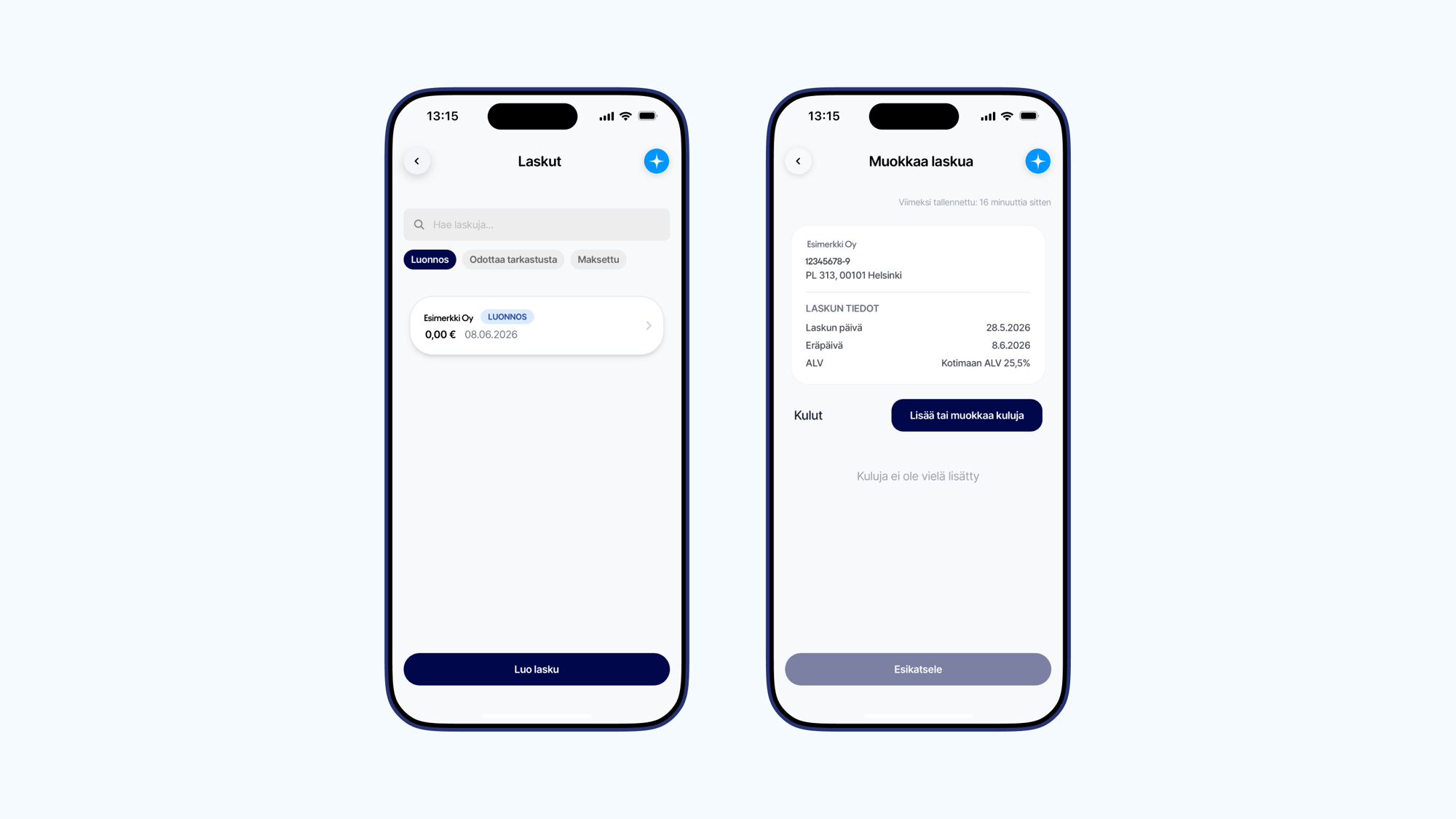
A draft invoice for adding expenses arising from your assignments with the partner first appears in your profile with an amount of €0.00. Once we receive the billing data from the client, we automatically combine the fee information with the draft invoice details. An invoice is then generated in your profile with the total amount, and you can track its status through the app. This means you don't need to create or send invoices for these assignments yourself. How do I create an invoice for another assignment? If you also do other assignments for which you create your own invoices, you can easily create invoices directly in the Invoices section of the app. You can find detailed instructions for creating other invoices here.
How do I add expenses as a light entrepreneur
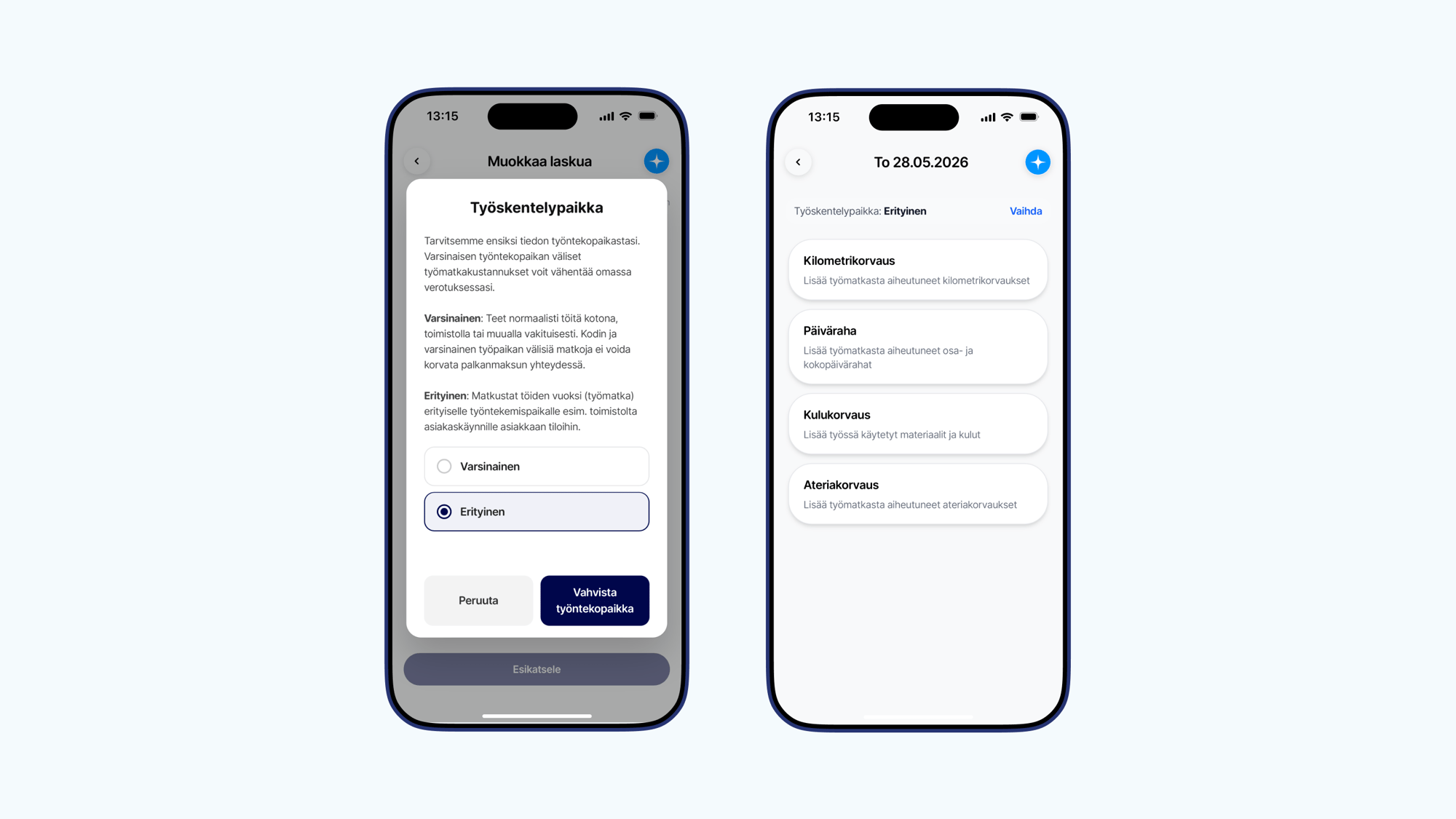
Truster creates invoices on your behalf based on information received from the client, so you don't need to create or send an invoice yourself. Your task is simply to add your own travel expenses and reimbursements to the ready draft invoice in your profile during the work period, if you want them to be tax-free when your fee is paid. By adding travel expenses to the draft invoice, you ensure that you receive the tax-free reimbursements you're entitled to right away with your fee payment, meaning more money stays in your pocket! Expenses accounted for during fee payment don't need to be reported separately to the Tax Administration. Please note that fuel, charging, or material costs cannot be added to the invoice as tax-deductible expenses as a light entrepreneur. These can instead be added to your personal tax return as income-generating expenses. The video covers the following topics: • 1:45 Adding mileage allowances • 3:19 Adding per diems • 5:42 Adding expense reimbursements 1. Start from the invoice Open the Truster app and go to the Invoices section to the draft invoice to which you want to add expenses. Select Add row and then Add or edit expenses. 2. Choose the workplace When adding expenses from completed assignments, set the workplace as Special. If you work permanently in the same place, such as at home or at an office, this is considered your primary workplace. In this case, trips between home and the workplace are usually not reimbursed. Finally, check the expenses See the expense-specific instructions below. Once all expenses have been added, check the details and make sure all expenses are included. You don't need to send the invoice—we will match the expenses to the correct assignment once we receive the billing information from the client.
What is light entrepreneurship
Light entrepreneurship is a form of work that allows a private individual to invoice for their own expertise without having their own business ID or setting up a company. A light entrepreneur finds their own clients and agrees on the content and price of the work, but invoicing is handled through an invoicing service. Light entrepreneurship is especially suitable for those who want to try entrepreneurial-style work easily and flexibly.
Adding a receipted expense reimbursement as a light entrepreneur
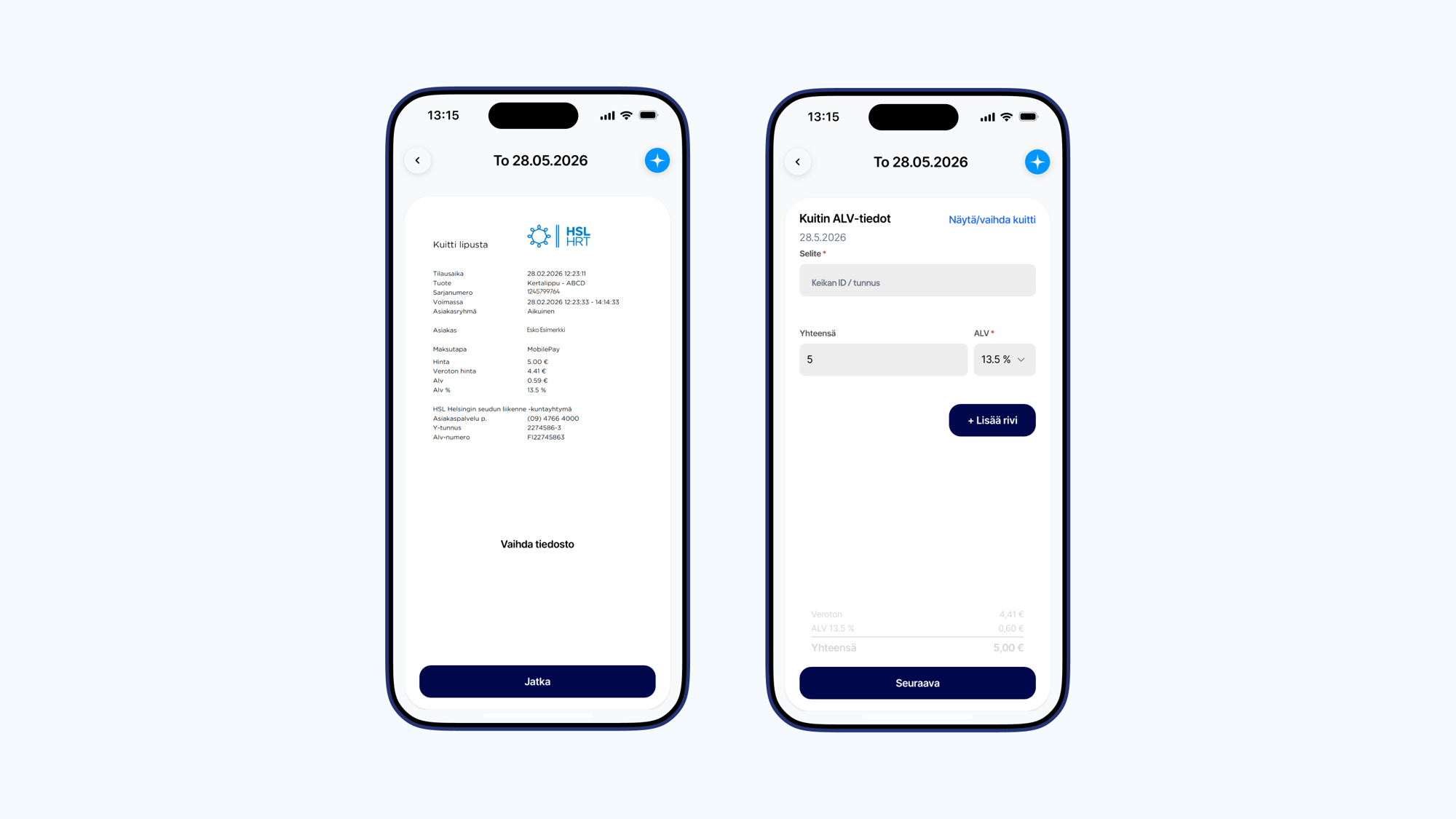
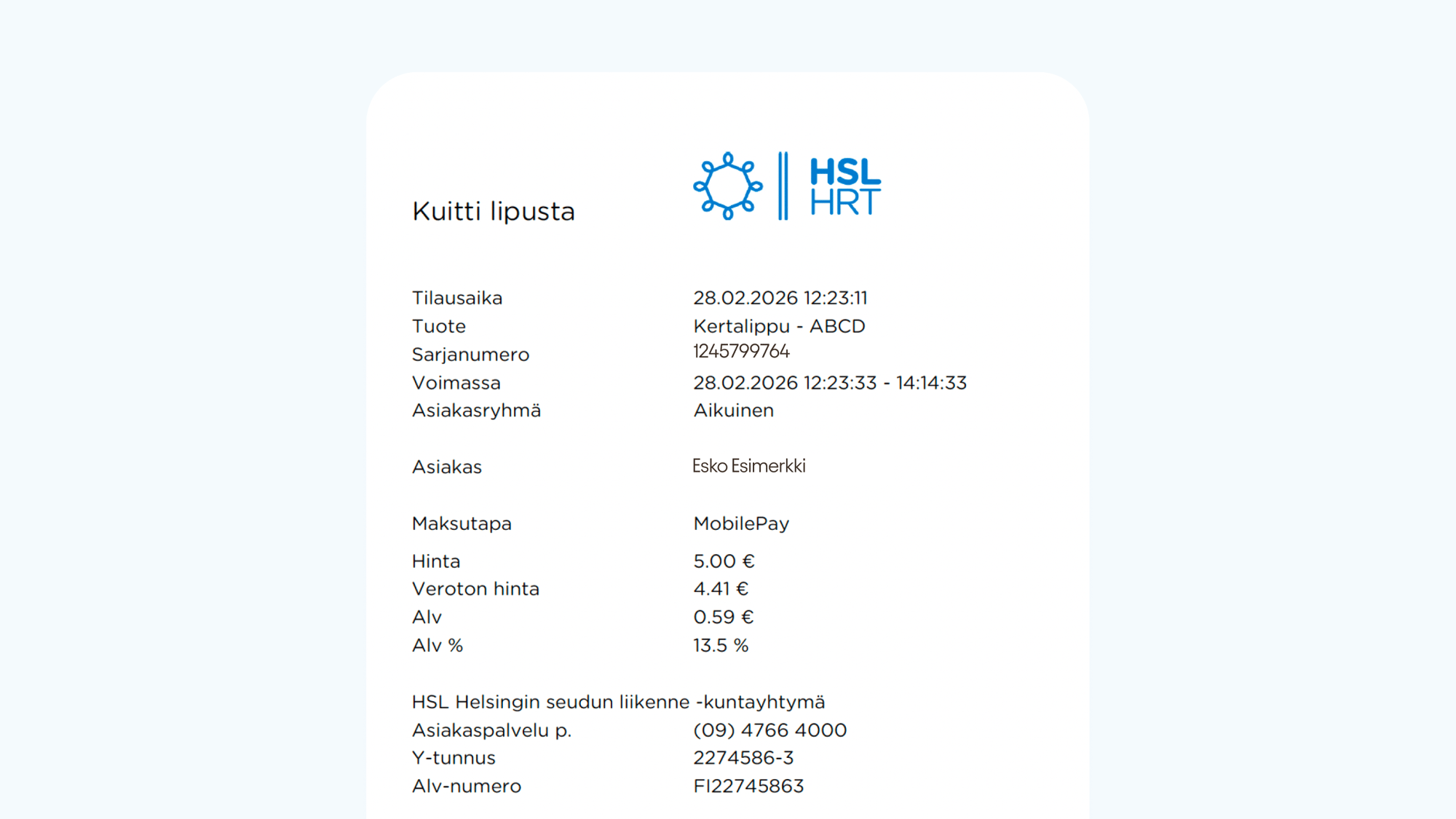
First, select the date for which you want to add an expense. Then select Expense reimbursement. Add the receipt • take a photo of the receipt or upload a file • enter the amount of the expense • add VAT information as shown on the receipt Domestic purchases: add the total amount and the VAT shown on the receipt Foreign purchases: add the amount in euros and VAT 0% Add a description In the expense description, add the assignment ID/identifier that the expense relates to. Acceptable receipt Make sure you add an acceptable receipt for deductions. An acceptable receipt includes: • seller's information (company name and business ID) • price breakdown • amount of VAT • date
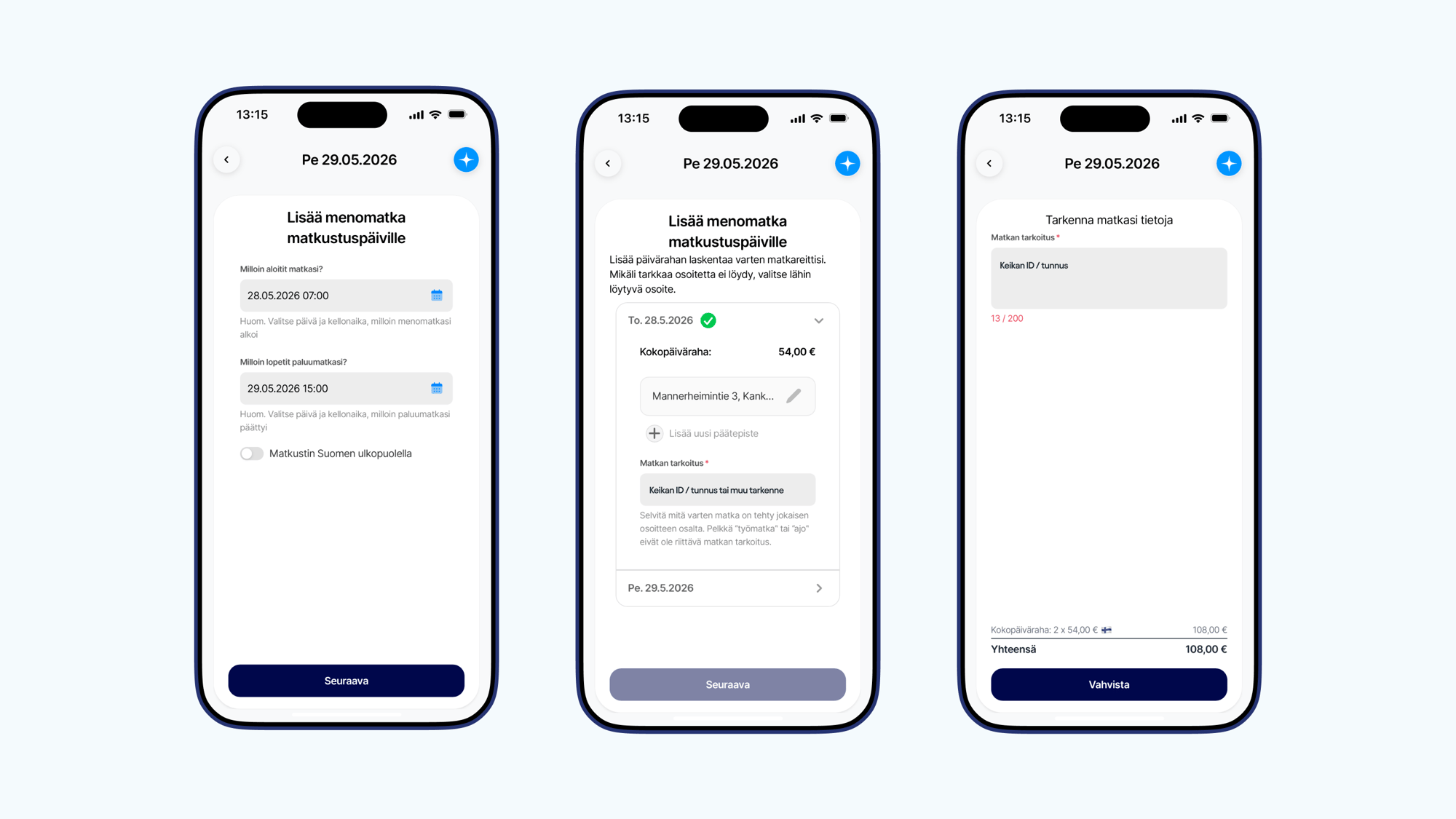
Adding a per diem as a light entrepreneur
If your work trip qualifies for a per diem, select Per diem and fill in: • the start and end time of the trip • the destination address • transit addresses, if you changed location Add the assignment ID/identifier that the per diem relates to in the description. Please note that the departure address is automatically taken from the home address in your profile, so you only need to add the destination address. Make sure your home address is up to date in the My Details section.
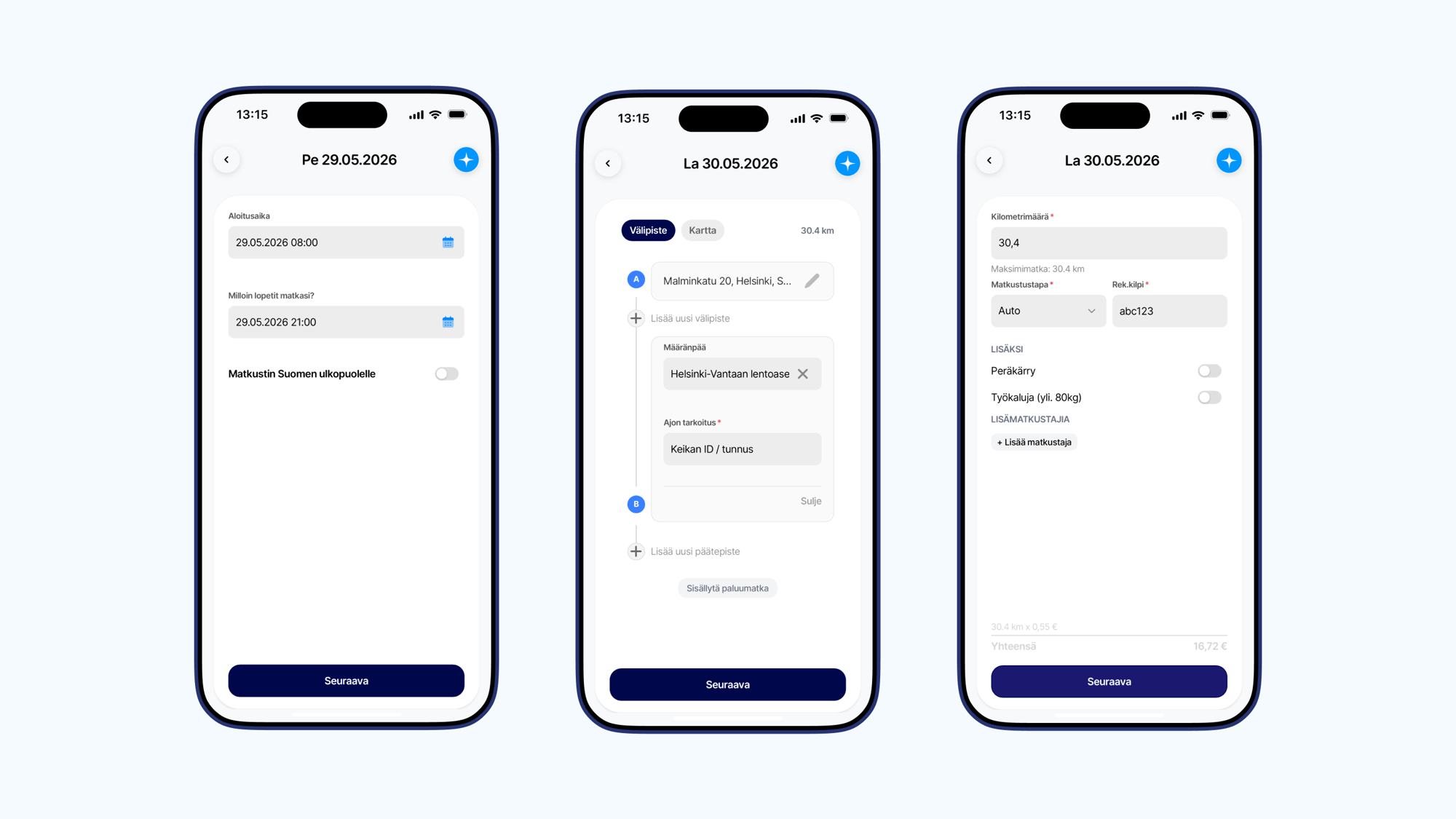
Adding a mileage allowance as a light entrepreneur
Select Mileage allowance and fill in: • start time • end time • departure address • destination • purpose of the trip (assignment ID/identifier) • vehicle information If the trip had several stops, add them to the route. If you returned to the starting point, select Include return trip. If traveling by car, also add the registration number.
Get paid instantly
With Pikamaksu, your net pay is in your account as soon as the invoice is paid.
Illustration: the user selects Pikamaksu, and net pay is paid into their account immediately after the invoice is paid.
Ready to start invoicing your VUUM gigs?
Sign up and get started in minutes.