Updated 27.9.2026
User guide
Adding receipts
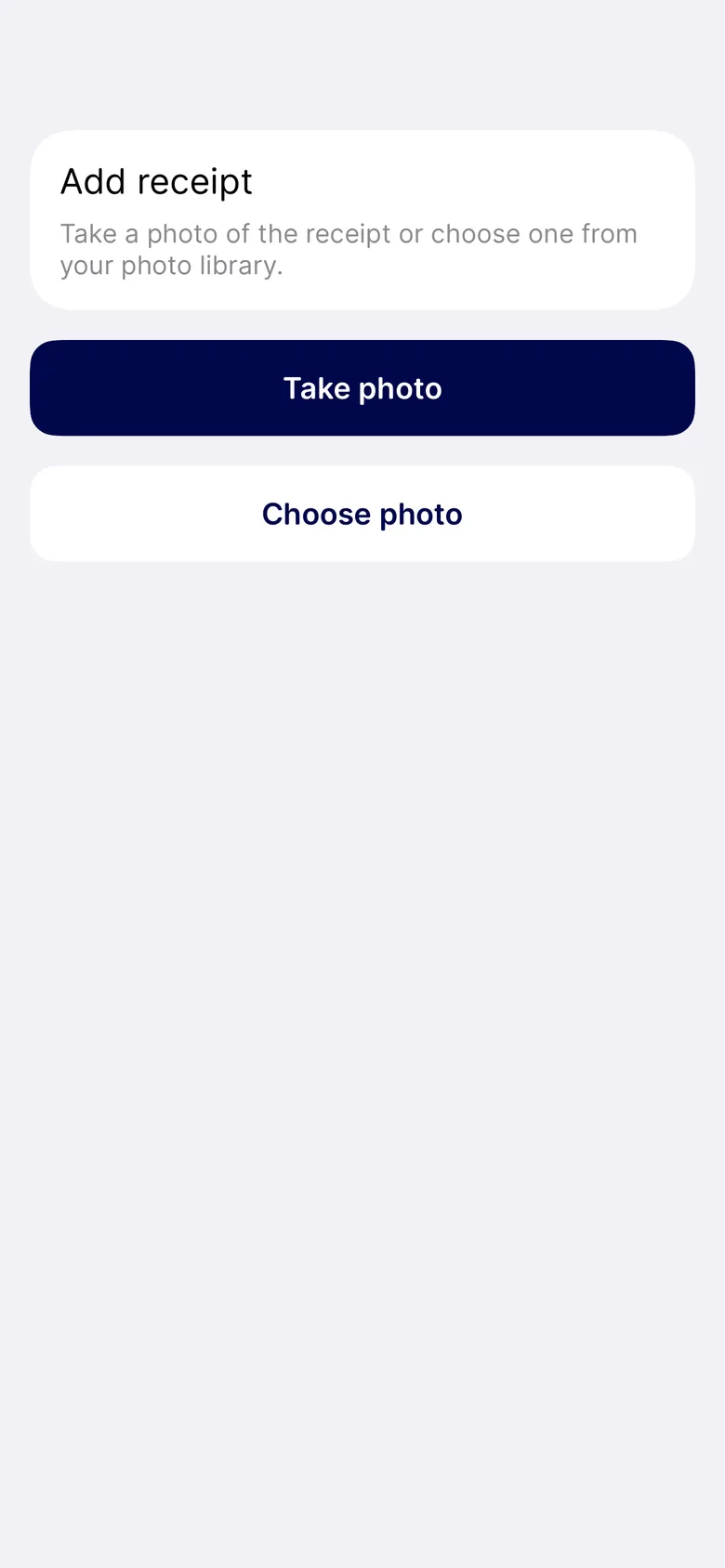
Step 1 of 6
Step 1 of 6: Tap Take photo and photograph the receipt, or choose a picture from your photo library.
- Tap Take photo and photograph the receipt, or choose a picture from your photo library.
- Drag the corners so the whole receipt fits, then tap Use photo.
- Check the details that were read from the receipt. You can add a purpose, for example what the trip was for.
- Tap Save to the salary pool.
- The receipt is saved to the salary pool. Tap Done.
- Open the receipt in the salary pool to see its lines. The trash icon removes a line, and the app asks you to confirm first.
Frequently asked questions
How many receipts can I scan per day?
Up to 30 a day. If you hit the limit the app tells you, and you can try again the next day.
What happens if the app cannot read the receipt?
You are asked to fill in the details yourself on the review screen instead. Nothing is booked until you confirm it, whether it was read automatically or filled in by hand.
Truster is opening in Sweden
Invoice without your own company. Currently by invitation: join the waitlist.